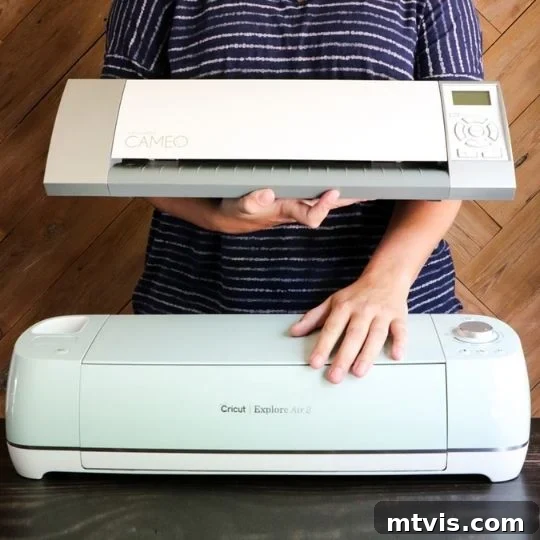
Silhouette vs. Cricut: The Ultimate Unbiased Cutting Machine Review & Comparison

Hey fellow DIY enthusiasts! Today, I’m diving into a topic I’ve received countless questions about: the showdown between Silhouette and Cricut cutting machines. My goal is to provide a 100% unbiased review, helping you navigate the pros and cons of each to determine which machine truly fits your crafting needs. I always strive for honesty, even in sponsored content, but to ensure absolute impartiality, this post is entirely unsponsored. Neither company has compensated me in any way, nor would I allow them to influence my perspective. My sole intention is to help you make an informed decision, as the perfect cutting machine isn’t a one-size-fits-all answer.
It’s important to note that my experience is primarily based on previous generations of these machines. I have extensively used a Silhouette Cameo (an older model, not the Cameo 4 released in September 2019) and the Cricut Explore Air 2. While I also own a Cricut Maker (which you can read about here), this comparison focuses on the Cameo vs. Explore series, as these are the most commonly debated entry-to-mid-level machines. The newer Cricut Explore Air 3 and Cricut Maker 3 (both released in June 2021) offer enhanced features, but my core observations remain highly relevant to understanding the fundamental differences between the brands.
As you delve into this comparison, remember that your choice isn’t just about the physical cutting machine; it’s equally about the accompanying design software. Both aspects are crucial for a seamless and enjoyable crafting experience!
Table of Contents
This post does include affiliate links to both machines for your convenience (which means if you make a purchase after clicking a link I will earn a small commission which helps keep my blog up and running but it won’t cost you a penny more)! Click here to read my full disclosure policy. By including affiliate links for both products, I reiterate my commitment to impartiality, as I have no financial incentive to favor one brand over the other.
Silhouette vs. Cricut: Which Cutting Machine is Right for You?
My Review of The Silhouette CAMEO
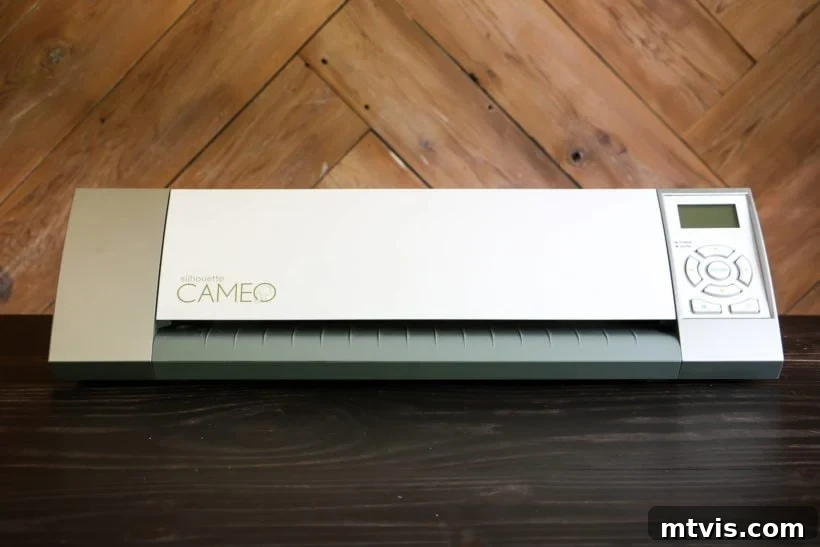
Let’s kick off this Silhouette vs. Cricut debate with the Silhouette Cameo, as it was my very first cutting machine many years ago. I must confess, I was instantly captivated. The ability to create intricate designs and cut them with such speed, far surpassing what I could achieve with scissors or an X-Acto knife, was truly revolutionary. It opened up a world of DIY possibilities, allowing me to craft signs, vinyl decals, cards, gift tags, and so much more. The excitement was palpable.
However, my initial enthusiasm was often tempered by project failures and a significant amount of wasted vinyl. While I don’t care to calculate the monetary loss, it was considerable. At the time, I simply attributed these setbacks to the inherent nature of cutting machines, assuming that all such devices had their quirks and occasional slips. Despite the frustration, I persevered, always hoping for a perfect cut.
Now, let’s address some of the most common questions I receive about the Silhouette Cameo:
How Easy is the Silhouette Design Software to Use?
Silhouette Studio is a downloadable software application for your computer. Many find it complex, but I was pleasantly surprised by its power and flexibility. It allowed me to either purchase designs from its extensive library or create my own from scratch. For those looking to use custom .svg files, be aware that you’ll need to upgrade to the “Designer” version, which typically costs around $50. However, for most users, the free version, combined with the vast array of affordable designs available, will be more than sufficient.
In my opinion, the design aesthetics of the images in Silhouette Studio often appear more professional than those found in Cricut Design Space, although Cricut is steadily closing that gap. A notable advantage of Silhouette Studio is its intuitive ability to easily type text on a curved path—a feature that, at the time of writing, is still lacking in Cricut Design Space.
The bottom line: if you have a background in graphic design, you’ll likely appreciate the creative freedom offered by Silhouette Studio. Its advanced features cater to those who enjoy building designs from the ground up. Conversely, if you’re new to graphic design and prefer ready-made solutions, you might find the software’s learning curve a bit steep. Most users who have experienced both Silhouette Studio and Cricut Design Space generally agree that Cricut’s software is more user-friendly, especially for beginners.
For a visual tour, you can watch the video below for a peek inside Silhouette Studio:
How Well Does the Silhouette Cameo Machine Cut?
My experience with the Silhouette Cameo’s cutting precision was, to put it mildly, inconsistent. It often felt like the machine had a mind of its own, delivering unpredictable results that could swing from acceptable to utterly frustrating. These inconsistencies were most pronounced when I attempted to cut long lengths of vinyl, a feature often touted as one of Silhouette’s key strengths: “matless cutting” for vinyl rolls up to 10 feet long.
In theory, the idea of cutting large-scale designs without a mat, by simply loading a vinyl roll, sounds incredibly appealing. Imagine creating an expansive design and producing it in a single, uninterrupted cut job! However, the reality of using this feature was far less glamorous. Loading vinyl directly into the Silhouette Cameo was frequently a struggle. Since the vinyl comes rolled, the leading edge often curls, causing it to repeatedly jam during loading. Even if I managed to get it loaded on the first attempt, manual straightening was almost always necessary to ensure it fed correctly.
The most significant and disheartening issue, however, was vinyl slippage during cutting. Despite meticulously positioning the rollers and following all instructions, the vinyl would frequently shift, ruining the cut job. The disappointment of unloading a 6-foot length of vinyl only to find warped cut lines and wasted material was profound. This translated into wasted time, wasted vinyl, and ultimately, wasted money—a cycle that was far from enjoyable.

To be fair, I rarely encountered problems when cutting cardstock with the Silhouette Cameo. My frustrations were almost exclusively linked to vinyl projects. While I haven’t personally used the Silhouette Cameo 4, discussions with friends who own the latest version suggest that the loading difficulties and vinyl slipping issues I experienced might still persist. This indicates that while newer models may bring improvements, some fundamental challenges with matless vinyl cutting could remain.
How Strong is the Silhouette Cameo and What Kind of Materials Can It Cut?
Independent testing conducted on earlier versions of the Silhouette Cameo in comparison to the Cricut Explore revealed a notable difference in cutting strength. You can review the strength test results by clicking here. The general conclusion was that the Silhouette Cameo was not as robust as the Cricut Explore, particularly when tackling thicker or more challenging materials. Here’s a quick summary of the comparative strength, based on such reports:
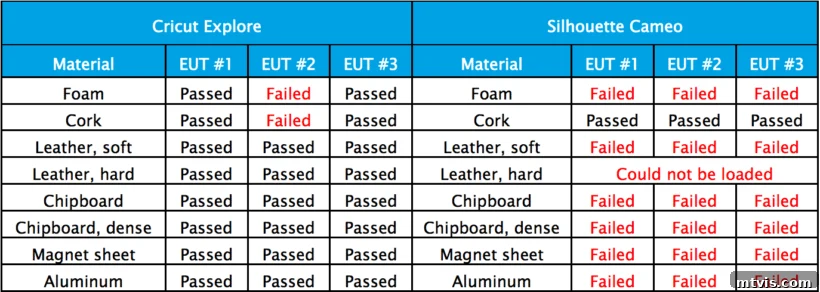
The Silhouette Cameo 4 is indeed reported to be significantly stronger than its predecessors. It boasts the capability to cut a wider range of materials, including denser options like basswood and various fabrics. However, as previously stated, I haven’t had the opportunity to personally test this latest version of the machine, so my insights are based on older models and user feedback regarding the newer ones.
What is the Cost of a Silhouette Cameo?
The Silhouette Cameo typically retails for approximately $299. It’s always a good idea to keep an eye out for sales, as prices can fluctuate, offering opportunities to purchase at a lower cost.
My Review of Cricut Explore
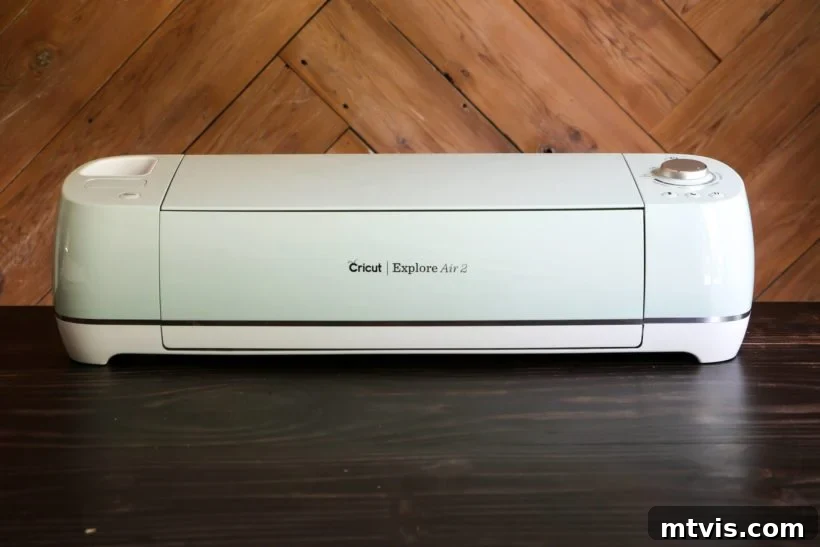
Next in our comparison is the Cricut Explore, a machine I’ve now used consistently for over five years. My primary model is the Cricut Explore Air 2, though Cricut offers several variations within its Explore series. While I also own the more powerful Cricut Maker (my full review is available here), I find myself reaching for my Explore machine far more frequently. This is largely because my everyday “normal” projects, such as cutting vinyl labels, cardstock, and various papers, don’t require the advanced capabilities of the Maker. Since acquiring my Explore machine in September 2016, I can confidently say I have not encountered a single issue or problem, even with frequent use. That’s over five years of reliable, uninterrupted performance!
Before the Cricut, I had never used one of their machines, having started my cutting machine journey with Silhouette. Given my tendency to stick with familiar technology and resist change, I genuinely believed I would never be “converted” to a different brand. Therefore, my skepticism was profound when I unboxed my Cricut Explore. However, I was immediately intrigued by what I discovered.
Right from the start, the Cricut Explore felt significantly more substantial and sturdier than the Silhouette Cameo. The Cameo’s lid often felt flimsy and would flop around when moved, and I was constantly paranoid about accidentally touching and damaging the crucial machine belts. The Cricut Explore, in contrast, felt robust and well-built, instantly alleviating those concerns. Its solid construction instilled a greater sense of confidence in its durability and operation.
Now, let’s address some of the most common questions about Cricut cutting machines:
Do You Need Cartridges to Cut with a Cricut?
Absolutely not! This is a common misconception that often deters potential Cricut users, and it was one of the reasons I initially gravitated towards Silhouette. However, this information is outdated. While older Cricut models from roughly eight years ago did rely on physical cartridges, that is no longer the case. Modern Cricut machines operate just like Silhouette, allowing you to create your own designs, upload custom images, and purchase digital design components directly within the Cricut Design Space software.
Can You Upload Your Own Images to Cricut Design Space?
No, this is another persistent rumor that needs to be debunked. You can indeed upload your custom designs and images into Cricut Design Space with ease. Furthermore, unlike Silhouette Studio, you do not have to pay for a software upgrade to gain the capability of uploading your own .svg files. This means greater creative freedom and cost savings for users who prefer to design their own graphics.
How Well Does the Cricut Explore Machine Cut?
The Cricut Explore cuts like a dream. Seriously, the difference in cutting quality between my Cricut and my Silhouette was a revelation. The cuts are noticeably quieter, faster, and remarkably cleaner. I hadn’t realized how often I had to meticulously clean up the edges of my Silhouette cuts until I started using the Cricut Explore. Whether I’m working with cardstock, vinyl, or even chipboard, the cuts produced by the Cricut Explore are consistently precise and flawless. The precision truly shocked me.
Now, let’s address a key difference in cutting capacity. While the Silhouette Cameo allows for matless cutting of vinyl up to 10 feet long, the Cricut Explore series (excluding the newest Explore 3) typically limits cuts to materials up to 2 feet long, and these always require a cutting mat. Initially, I viewed this as a significant drawback, especially after my experiences with long vinyl cuts on the Silhouette. However, my perspective shifted dramatically after my first large vinyl project with the Cricut Explore. I quickly understood why cutting vinyl with a mat, in manageable 2-foot sections, is actually a superior method. The precision and consistency gained far outweigh the perceived limitation.
*A notable update for newer models: The Cricut Explore 3 (and Maker 3) now offers an expanded cutting capacity of up to 13 inches by 12 feet when using Cricut Smart Materials, bridging the gap with Silhouette’s long-cut capabilities while maintaining Cricut’s renowned precision.
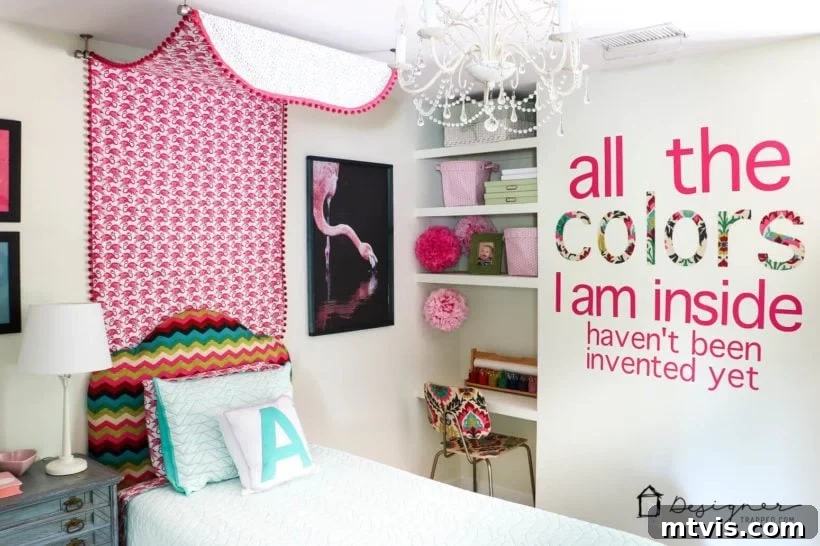
Here’s a photo of the DIY wall decals I made for my daughter Attley’s room. Interestingly, it’s the same wall where I attempted the previous decal with my Silhouette, but this time, the Cricut Explore delivered perfect results. I didn’t waste a single inch of vinyl! I also used my Cricut to cut the word “colors” out of chipboard, which I then coated with fabric and Mod Podge, and I’m absolutely thrilled with how they turned out.
How Easy is the Cricut Design Software to Use?
I’ll be honest: adjusting to Cricut Design Space was initially challenging for me. I believe this was largely due to my extensive familiarity with Silhouette Studio, leading to a learning curve I hadn’t entirely anticipated. One initial frustration stemmed from its reliance on Adobe Flash, but thankfully, the brand new version of Cricut Design Space has eliminated that issue, making it a much smoother experience! This was a significant improvement.
As I mentioned earlier, most people, especially beginners, find Cricut Design Space to be more intuitive and straightforward than Silhouette Studio. If I had started my cutting machine journey with Cricut’s software, I likely wouldn’t have struggled at all. But for someone accustomed to Silhouette Studio, it took some time to adapt.
Now that I’m fully acclimated, I find Cricut Design Space incredibly easy to use. It’s ideally suited for individuals who want to create simple designs or work with pre-existing templates, and it’s perfect for casual crafters who aren’t looking to delve deep into complex graphic design principles.
That’s not to say you can’t create custom designs with Cricut software; you absolutely can. However, the advanced design functionalities are more limited compared to Silhouette Studio. This is by design: Cricut Design Space was developed primarily for importing existing designs created in other graphic design programs, rather than for building intricate designs from scratch. In essence, it was crafted for creative consumers, not necessarily professional graphic designers. Therefore, I find it perfectly seamless to create my custom graphics in external software like Adobe Illustrator and then easily import them into Cricut Design Space (as I did for the graphics on my DIY Santa Sacks).
Historically, Cricut Design Space required an internet connection as a web-based program. However, it is now available as a downloadable desktop application, bringing it in line with Silhouette Studio in that regard and offering greater flexibility.
Take a look at the video below for a glimpse into Cricut Design Space:
What is the Cost of a Cricut Explore?
The Cricut Explore Air 2, which is the machine I primarily use, typically retails for around $179. The newer Cricut Explore Air 3, with its enhanced features and smart material compatibility, usually sells for approximately $299. As with any popular crafting tool, it’s worth keeping an eye out for promotional sales and bundles to find the best possible deal.
Which Machine Wins: Cricut Explore or Silhouette Cameo?
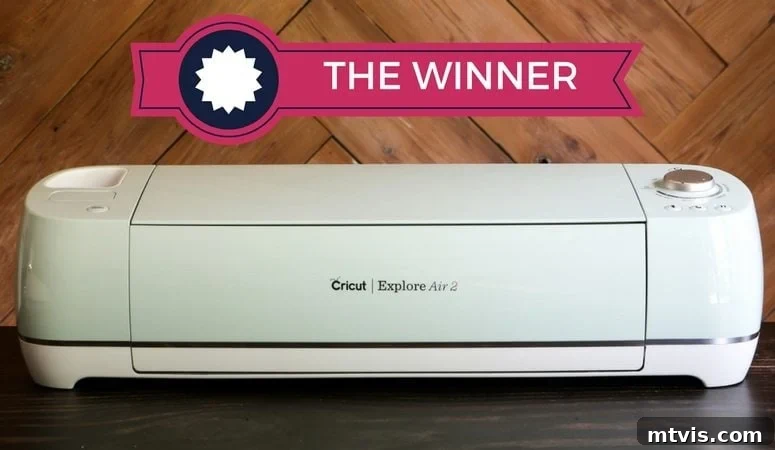
After years of extensive use and direct comparison, for me, the clear winner in this cutting machine debate is the Cricut Explore. This conviction has only strengthened since I’ve grown accustomed to Cricut Design Space. The machine itself is undeniably sturdier, offers superior cutting strength, and consistently performs better, delivering cleaner and more precise cuts across various materials. For the vast majority of users, Cricut Design Space is far more user-friendly and perfectly aligns with their crafting needs.
Even if the machines were entirely equal in performance (which I do not believe they are), I would still choose and confidently recommend Cricut over Silhouette to 99% of people, primarily due to the exceptional user experience provided by its design software. Cricut’s focus on intuitive design and seamless operation makes it ideal for hobbyists and everyday crafters.
The only scenario in which I might recommend a Silhouette over a Cricut is for individuals who prioritize creating highly intricate custom designs from scratch AND do not have access to or prefer not to use external graphic design software (such as Adobe Illustrator, Photoshop, or InDesign). This represents a very small niche of users. These individuals might find Silhouette Studio’s native design capabilities more robust, even if it means potentially compromising on the machine’s cutting performance and overall ease of use.
If you’ve determined that Cricut is the right brand for you but are still weighing your options between models, don’t worry! I have a dedicated post to guide you: Which Cricut Machine is Right For You? This guide will help you differentiate between the Cricut Explore, Cricut Maker, and Cricut Joy, ensuring you select the perfect machine for your specific projects and budget.
However, it’s worth noting that most people who enjoy graphic design (myself included) already utilize external software like Adobe Illustrator. In this context, the best of all worlds is combining an external design program with a Cricut machine. You can create your intricate custom designs in software like Illustrator and then effortlessly upload them as .svg files into Cricut Design Space, without incurring additional upgrade costs. This approach gives you the ultimate creative freedom in design coupled with Cricut’s superior cutting precision and reliability.
Project Inspiration: What Can You Create with a Cricut or Silhouette?
No matter which machine you choose, both Cricut and Silhouette open up a world of creative possibilities. You can check out all of my Cricut and Silhouette projects here. Over the years, I’ve used my machines to tackle a wide array of awesome DIY projects, transforming everyday materials into personalized creations for my home and life. Here are a few examples to spark your imagination:
-
DIY Santa Sacks Your Kids Will LOVE!
-
Which is the Best Cricut Machine for You?
-
How To Make Labels With a Cricut Cutting Machine – My 2 Favorite Methods
-
Silhouette vs. Cricut – My Unbiased Review
-
Personalized Christmas Ideas With Cricut
-
DIY Advent Calendar With Cricut Air Explore 2
Other posts you may enjoy:
- How to Make Vinyl Wall Quotes Yourself
- Make ALL THE THINGS With the Cricut Maker
- Silhouette & Cricut Projects for Your Home and Life
- Cricut Cutting Review: DIY Crepe Paper Succulents
Wondering how I approach transforming rooms and spaces in our home? Check out Designer in a Binder®, my comprehensive guide to decorating your home with confidence.
And if you want exclusive content and behind-the-scenes sneak peeks, be sure to subscribe to my newsletter before you head out! (Note: The original subscription form script has been removed for this HTML-only output.)