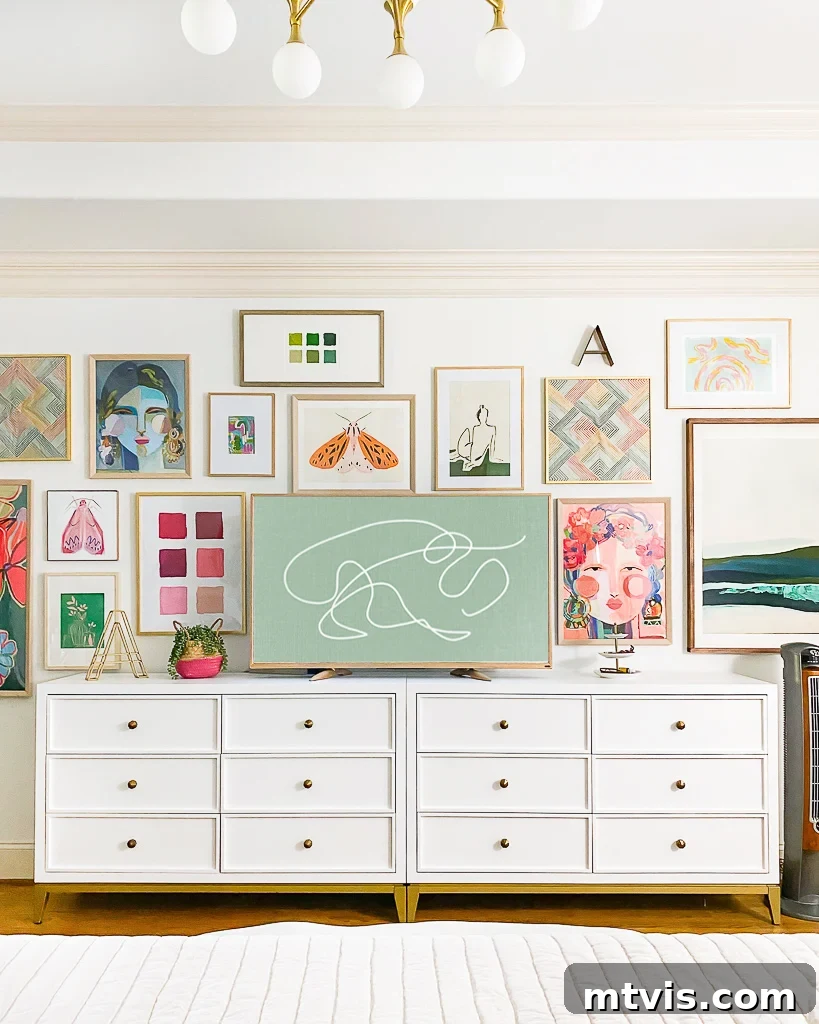
Have you ever admired the sophisticated look of a television seamlessly blending into your decor, perhaps displaying a beautiful piece of art instead of a blank, black screen? If so, you’re in the right place! And here’s the best part: achieving this elegant transformation doesn’t require an expensive Samsung Frame TV. With just a standard smart TV—which most modern televisions are these days—you can turn your screen into a dynamic art display. Take a look at the TV in our bedroom gallery wall below. It’s a very basic and affordable smart TV, yet it looks incredibly stylish, doesn’t it? Read on to discover the exact steps I followed to achieve this and how you can replicate it in your own home, creating a stunning focal point without breaking the bank.
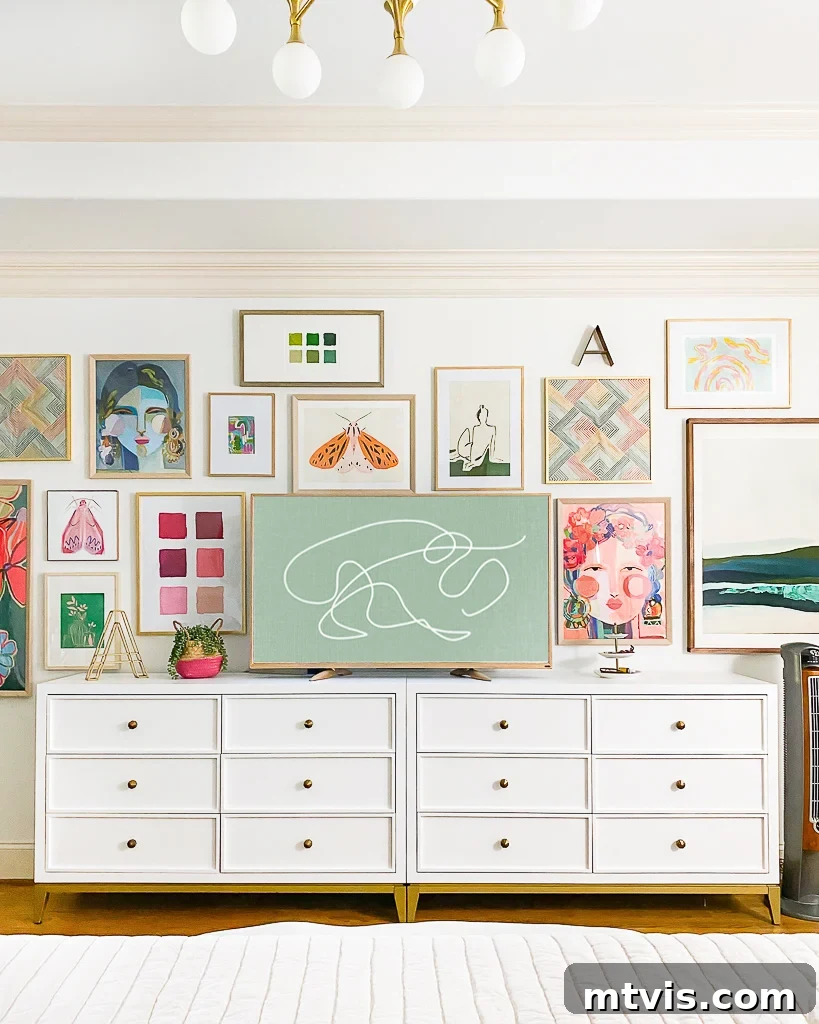
In recent years, the trend of displaying art on televisions has exploded across social media. Many people opt for dedicated screens like the Samsung Frame TV, specifically designed to mimic framed artwork when not in use. While Frame TVs are undoubtedly stylish and functional—we even have one above our family room fireplace—their premium price tag can be a deterrent for less prominent rooms. You can read my full, unbiased review on whether the Samsung Frame TV is truly worth the investment here.
However, if investing in a Frame TV isn’t for you, there’s great news: you can still transform any smart TV into a stunning art display! Not only can you showcase beautiful digital art, but you can even enhance the look of your TV’s basic plastic frame. This guide will walk you through both processes, offering a highly affordable and effective alternative to a Frame TV. Think of it as a clever “Frame TV hack” that brings high-end aesthetics within reach.
Why Display Art on Your Smart TV?
This simple project resonated so strongly when I first shared it on Instagram, and for good reason: TVs are often the biggest visual challenge in home decor. They are typically large, dark rectangles that rarely integrate harmoniously with a room’s design. Instead, they often stand out as unintentional and unappealing focal points due to their size and prominent placement.
By displaying art on your TV when it’s off, you convert this utilitarian object into a beautiful, intentional focal point that enhances your room’s aesthetic rather than detracting from it. It’s a fantastic way to personalize your space, allowing you to change the displayed art based on your mood, the season, or an upcoming holiday. This flexibility adds a dynamic element to your home decor that traditional wall art can’t match.
I personally experienced this transformation with the very basic Fire TV in our bedroom. For less than $15 and about 15 minutes of work, the difference was incredible! Just look at the before and after photos below to see the significant impact it made on our space:
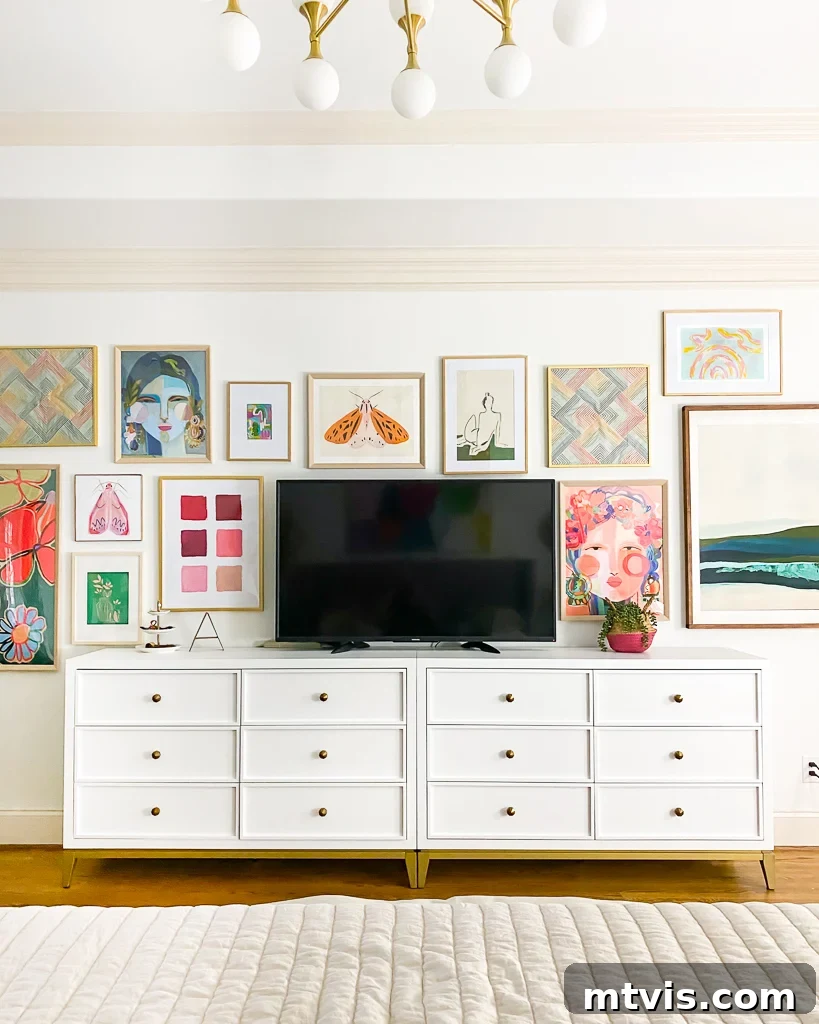
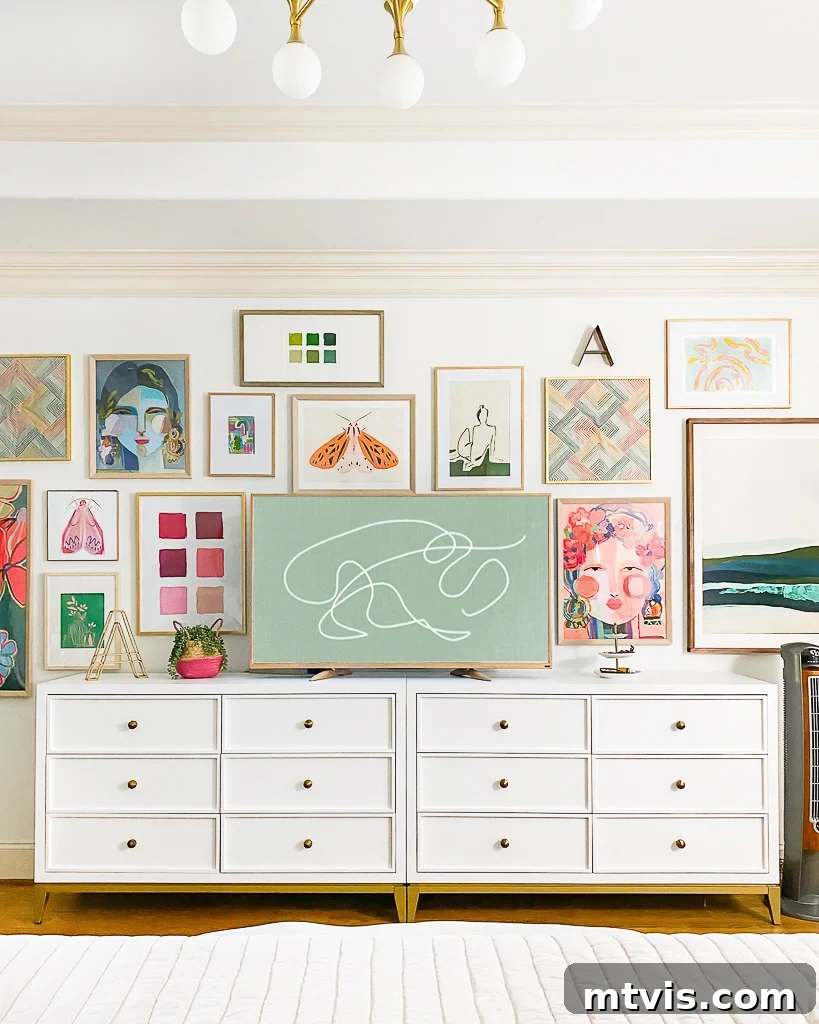
You might also notice a subtle but impactful change in our TV’s plastic frame, which went from black to a beautiful gold. If you’re interested in elevating your TV’s aesthetics even further, be sure to check out how I updated the basic plastic frame for about $5. This extra step is particularly effective if you plan to integrate your TV into a gallery wall, making it blend in even more seamlessly. You can discover my favorite gallery wall ideas and practical tips here.
The Rise of TV Art: A Frame TV Alternative
The concept of “TV art” has rapidly gained popularity as homeowners seek creative ways to integrate technology with interior design. Rather than letting a large, dormant screen dominate a room, why not transform it into a piece of art that complements your aesthetic? This guide specifically focuses on achieving this look without the significant investment required for a Samsung Frame TV. While the Frame TV is excellent at what it does, offering specialized anti-glare screens and customizable bezels, many smart TVs can replicate the core functionality—displaying beautiful digital art—for a fraction of the cost.
This approach allows for incredible flexibility and personalization. You can easily switch out artwork to match seasons, holidays, or your mood, keeping your decor fresh and engaging. It’s also an ideal solution for renters or those who prefer not to make permanent changes to their walls, offering a stylish decorative element that’s completely reversible.
Choosing the Perfect Digital Art for Your TV
The first step in transforming your smart TV into an art display is finding high-quality digital art that will look fantastic on your screen. The good news is that acquiring stunning digital art is both easy and affordable. You can find virtually any style or subject imaginable, often priced between $2 and $6 per digital piece.
Where to Find Digital Art:
- Etsy: A fantastic marketplace for independent artists selling digital downloads. Search for “TV art,” “Frame TV art,” or “digital art for TV.”
- Stock Photo/Art Sites: Websites like Unsplash, Pixabay, or even Adobe Stock (for premium options) offer high-resolution images. Just ensure the licensing allows for personal display.
- Artists’ Websites: Many digital artists sell directly from their own shops, often offering unique collections.
- Free Resources: Some museums offer free digital downloads of classical artwork in the public domain.
What to Look For:
- Resolution: Ensure the art is high-resolution (e.g., 4K or higher) to prevent pixelation on your large screen.
- Aspect Ratio: Most TVs have a 16:9 aspect ratio. Look for art that matches this or can be easily cropped without losing essential details. Some artists specifically create art for TV display, often offering both 16:9 and 4K resolutions.
- Style and Theme: Choose art that complements your room’s existing decor and reflects your personal taste. Consider landscapes, abstracts, still life, seasonal themes, or contemporary designs.
- Color Palette: Pay attention to how the colors in the art will interact with your room’s lighting and existing color scheme.
Once you’ve selected and downloaded your desired digital TV art, you’ll generally have a couple of primary methods for displaying it on your TV. Watch the short video below for a quick overview of both options, which will make the detailed instructions that follow even clearer.
(Video: Learn how to display art on any smart TV, showcasing two easy methods to transform your screen into a beautiful art canvas without a Frame TV.)
Options for Displaying Digital Art on Any Smart TV
Option 1: Use TV Art as a Screensaver (Guide by TV Type)
Utilizing your TV’s screensaver function is one of the most common and effective ways to display digital art. The exact steps may vary slightly depending on your smart TV’s brand and operating system, as settings menus and user interfaces are updated regularly. However, the framework provided below should offer enough guidance to help you navigate your specific TV’s options, even if the menu names are a little different.
How to Display Art on a Fire TV
- Upload Art to Amazon Photos: Download the Amazon Photos iOS or Android app, or log in via a web browser. I found the web browser easiest, especially when my digital art downloads were already on my computer. Upload your chosen art piece(s), ideally into a dedicated folder like “TV Art.”
- Access Fire TV Settings: On your Fire TV, go to “Settings,” then select “Display & Sounds.”
- Select Screensaver: Scroll down and click on “Screensaver.”
- Choose Your Art Folder: Select “TV Art” (or whatever you named your folder) from the available options.
- Adjust Display Settings: Customize your display preferences. I set my screensaver to activate after 5 minutes and disabled “Smart Captions,” “Alexa hints,” and “Date & Clock” to ensure the art is displayed without any overlaying text or messages.
How to Add Art to a Chromecast TV
- Upload Art to Google Photos: Upload your selected digital art piece(s) to a specific album or gallery in Google Photos.
- Open Google Home App: On your smartphone, open the Google Home app.
- Select Chromecast Device: Choose your Chromecast device from the list of connected devices.
- Configure Ambient Mode: Tap “Settings,” then navigate to “Ambient mode,” and select “Art Gallery” (or the name of your Google Photos album).
How to Add Art to a Roku TV
In Fall 2024, Roku introduced a fantastic new feature called “Backdrops,” which simplifies displaying digital art and essentially turns your Roku TV into a dynamic art canvas. Roku Backdrops offers a vast library of thousands of free 4K photographs and artworks, alongside the option to upload your own custom images.
Here’s how to utilize Backdrops on your Roku TV:
- Enable Backdrops: Go to Settings > Home Screen Menu > Backdrops > Open Backdrops app. If you don’t see it, search for “Backdrops” in your TV’s app store.
- Choose Art or Collection: Within the Backdrops App library, select an image or a collection you like by clicking on it.
- To cycle through a collection, select “Set as Backdrop” or “Start Backdrops” from the collection page.
- To display a single image, click on the image and then “Start Backdrops.” To ensure it remains static, press * on your remote to open Backdrops Options and verify “Image Duration” is set to “Don’t Change.”
- Upload Your Own Images: To add your digital art directly, go to “Add your photos” in the app, then “Upload photos,” and follow the on-screen prompts. Alternatively, select “Connect Google Photos” to sync images from your Google Photos account.
- Activate and Automate Backdrops: Tap your remote’s power button to start Backdrops. To turn your TV off completely, press and hold the power button until the screen darkens. For automatic activation when idle, go to Home > Settings > System > Power and enable “Auto Power Savings.”
If the Backdrops feature isn’t available on your Roku TV or you prefer an alternative, you can still display digital art using a different method:
- Upload Art to Google Photos: Place your chosen digital art into a gallery in Google Photos.
- Install Photo View Channel: Add the “Photo View” channel (app) to your Roku TV.
- Sign In and Select Album: Open “Photo View” and sign in with your Google account. Choose the album containing your art.
- Set as Screensaver: Navigate to Roku’s settings: Click Settings > ScreenSaver > Change Screensaver > PhotoView.
- Adjust Wait Time: Finally, adjust how long your TV waits before the screensaver starts: Click Settings > ScreenSaver > Change wait time.
This latter method is how we successfully displayed digital art on the Roku TV in our family bonus room for years before the Backdrops feature was introduced, and it worked flawlessly.
How to Add TV Art to an Apple TV
- Upload Art to iCloud: Upload your chosen digital art piece(s) to an album in iCloud Photos.
- Enable iCloud Integration: In your Apple TV settings, turn on iCloud integration. Important: Do not enable Photo Stream when prompted.
- Access Screensaver Options: Go to the screensaver options within Apple TV’s settings.
- Select iCloud Album: Click “Photos” > “iCloud,” then choose the specific album you wish to use for your TV art.
Option 2: Display Art on a TV Using YouTube
While the screensaver method is convenient, it typically only activates after a period of inactivity. If you desire more immediate control over when and how long your chosen art is displayed, the YouTube method is an excellent alternative. This involves playing a video of a static image that can run for an hour or more, giving you on-demand art display.
Here’s how to use YouTube to display art on your smart TV:
- Ensure Internet Connection and YouTube App: Verify that your smart TV is connected to the internet and has the free YouTube app installed. If not, you can usually download it easily from your TV’s app store.
- Choose Your Art on YouTube: YouTube hosts a vast collection of free TV art options; simply search for “tv art” or “static art for TV” to find them. Additionally, many digital art sellers now provide a YouTube link for displaying their purchased artwork, which is a feature we’ve started offering for the TV art designs in the Kaleidoscope Living shop!
- Play and Enjoy: Once you’ve selected your desired art video, press play, and instantly, your chosen digital artwork will be beautifully displayed on your TV screen.
Option 3: Use Samsung’s Ambient Mode (for select Samsung TVs)
Certain Samsung TVs, particularly Samsung QLED models and the Samsung Frame TV (which utilize Samsung’s proprietary operating system rather than FireTV or Roku), offer a unique feature called “Ambient Mode.” If your Samsung TV supports this, here are the instructions for using the SmartThings App to display art. For additional ways to set up Ambient Mode, you can find more information here.
- Save Images to Your Phone: Ensure the image(s) you wish to display on your TV are saved to your smartphone’s photo gallery.
- Download & Connect SmartThings App: Download the SmartThings App to your phone and follow the in-app instructions to connect it with your compatible Samsung TV.
- Select “Art Mode”: Within the SmartThings App, choose the “Art Mode” option.
- Add Your Photos: Click the “Add photos” icon and then select the image(s) from your phone that you want to display on your TV.
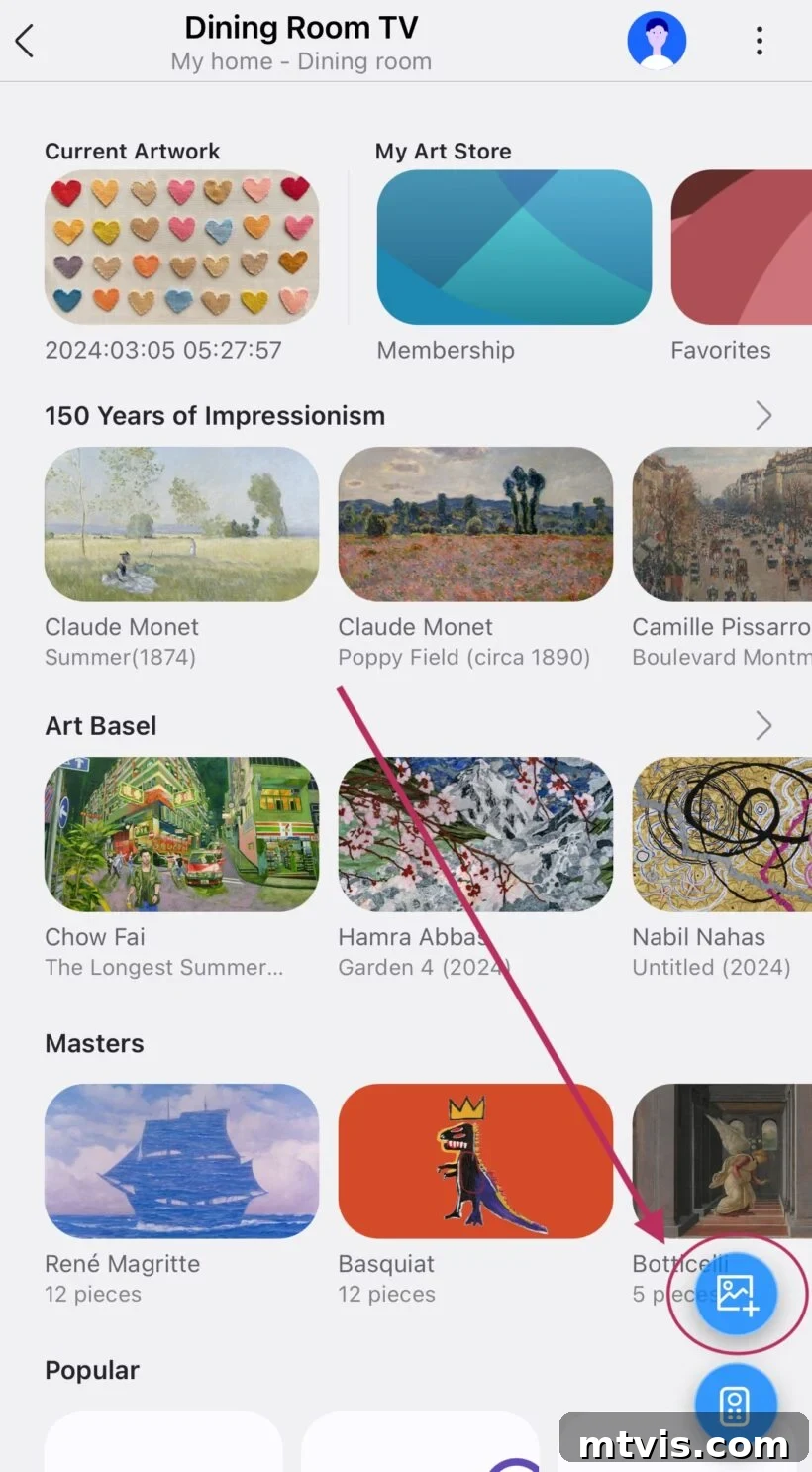
- Set on The Frame: Tap “Set on The Frame” (or similar wording, depending on your TV model) to apply the selected art.
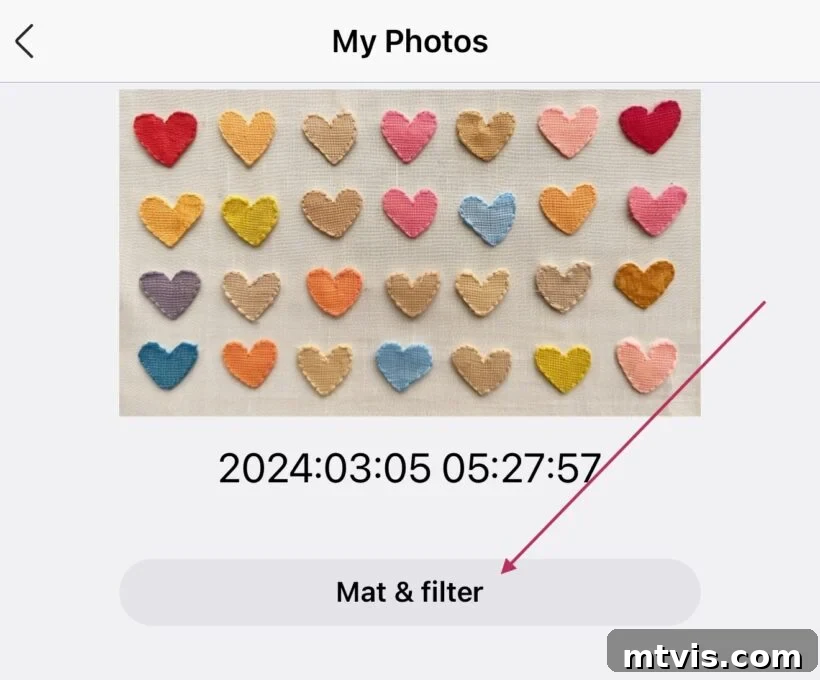
- Customize Display Options: Click “Mat & filter” to access various display customization options. Here, you can add a digital mat to your image, adjust the brightness, modify the color temperature, and more, allowing you to fine-tune the art’s appearance to perfectly suit your room.
Frequently Asked Questions About TV Art
That’s a very valid and important question! Displaying digital art on your TV can beautifully transform your space, but it’s wise to be aware of the potential for screen “burn-in.”
Screen burn-in refers to a permanent discoloration of specific areas on an electronic display. It occurs when a static image is left on the screen for an extended period, potentially imprinting a ghost image onto the display. This could theoretically happen if the same piece of digital art is displayed on your TV for too long without being changed.
It’s important to note that not all TV screens are equally susceptible. OLED screens, while offering superior blacks and contrast, can be more vulnerable to burn-in compared to LCD TVs. Historically, older Plasma TVs were highly prone to it. Modern TVs, including Samsung’s The Frame TV and Roku’s new Backdrops feature, incorporate special algorithms and burn-in protection measures designed to minimize this risk, even with static images.
To further safeguard against burn-in, here are some actionable tips:
- Regularly Change Art: Avoid leaving the exact same image on your screen for excessively long periods. Periodically change the digital art displayed.
- Vary Brightness: While vibrant art looks great, avoid using maximum brightness settings for extended periods, as higher brightness can accelerate burn-in risk.
- Utilize Rotation: If your TV’s screensaver function allows, set it to cycle through a collection of images rather than displaying a single static one.
- Power Off: If you’re going away for an extended period, turn off your TV completely rather than leaving art displayed.
The exact timeframe for when burn-in might occur varies significantly, depending on factors like the display type, brightness, and specific image characteristics. In our experience, we feel comfortable displaying digital art on our LCD TVs for up to 2-4 hours at a time and have not encountered any screen burn-in issues.
The frequency varies for us. We almost never change the image on the TV in our bonus room, where it displays a consistent aesthetic. However, for the TVs in our family room and primary bedroom, I love to change the art seasonally and for holidays. This keeps the decor fresh and reflects the current time of year or festive spirit.
Absolutely! Hiding unsightly TV cords is key to achieving that polished, integrated look. While I haven’t personally tackled this DIY, my friend Ashley has an excellent guide on how to hide TV cords on your wall (and other cables, too!). Solutions range from simple cord covers that blend with your wall to more involved in-wall cord management kits. The goal is to create a clean, minimalist appearance that allows your beautiful TV art to shine without distraction.
Ready to explore more digital art options for your smart TV? You can find links to some of my favorite seasonal and holiday art collections by clicking on the images below, perfect for instantly updating your home’s ambiance.
More ART & Wall Decor Ideas
SEE ALL ART POSTS
-
How to Display Art On Almost Any Smart TV
-
How to Make Faux Oversized Poster Hangers
-
DIY Light Up Wall Art
-
Make Large DIY Picture Frames For Less than $20 Each
-
DIY Magnetic Poster Hangers
-
27 Gallery Wall Ideas + Practical Tips to Inspire You
Curious about my personal approach to transforming rooms and spaces in our home? Be sure to explore Designer in a Binder®, my comprehensive guide to decorating your home with confidence and ease.
For exclusive content, behind-the-scenes sneak peeks, and the latest design tips delivered straight to your inbox, don’t forget to subscribe before you go!
(Email subscription form placeholder – actual form removed as per instructions)